


Are your sensors working?
Check and see which sensors are showing on your school’s dashboard.
📊 Go to dashboard.iot.ed.ac.uk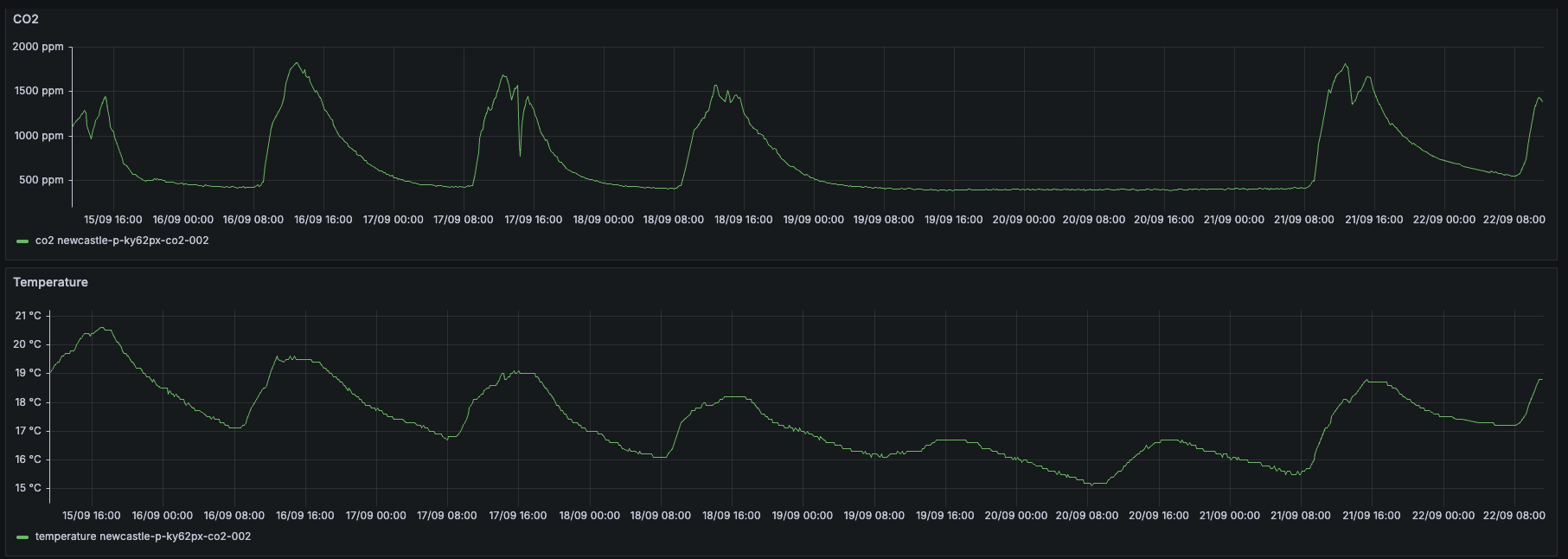
Then select your school region and school from the drop-down menus. You can then see which sensors are working and which are not.
What do the sensors look like?
There are a range of different sensors deployed in schools, some with e-screens and solar panels. Each looks different so you can identify which sensors you have from the images below or the name listed on the dashboard.
Elsys ERS-CO₂
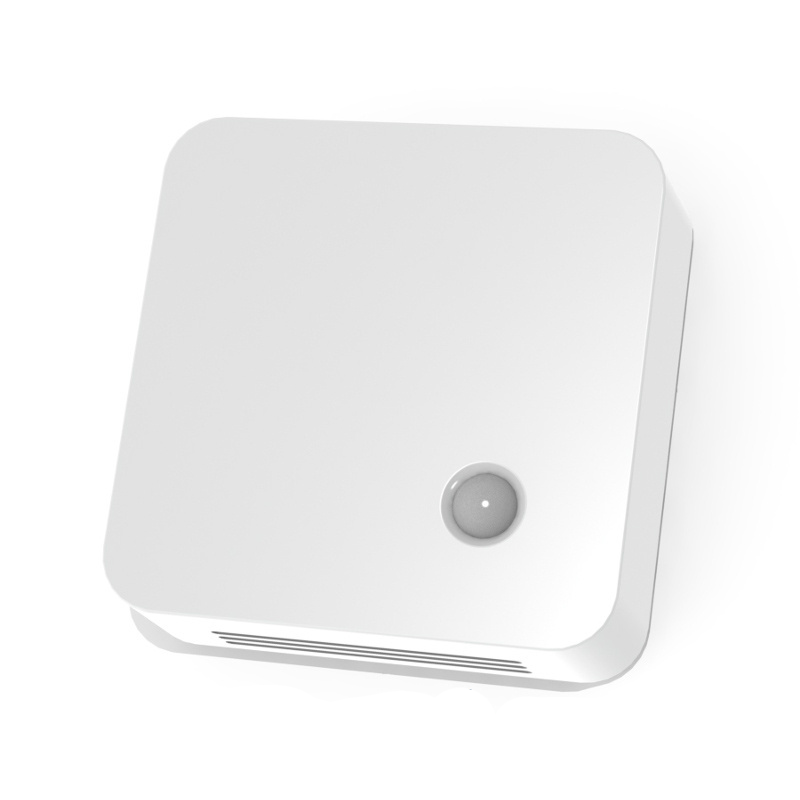
There are over a thousand of these deployed in schools. There is a small infrared sensor on the front. If this sensor is not working:
- Retrieve the sensor and place it near the gateway — the same corridor is fine — and see if it jumps to life.
- If not, pop the back off the sensor and press the small reset button in between the batteries. The LED will immediately start flashing as it resets.
- If no LED shows, the batteries are dead.
Once working, it will take around 30 minutes for data to appear on your graph.
MClimate CO₂ Display Lite
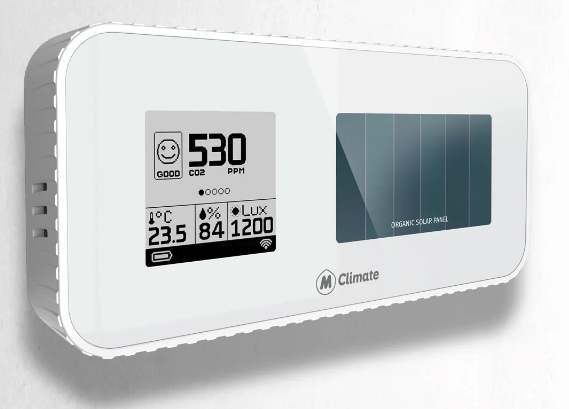
These sensors are light-powered — the most likely reason one stops working is that it has run out of power.
- Place the sensor facing outwards on a window ledge for a couple of days. This should recharge the battery sufficiently — watch the battery icon on the screen for signs of life.
- If the sensor doesn’t recover after solar charging, use a paperclip to press the reset button in the small hole on the right-hand edge of the unit.
Once charged with solar power, the sensor will continue to charge itself from normal classroom lighting. Once working, it will take around 30 minutes for data to appear on your graph.
Milesight-IoT AM307
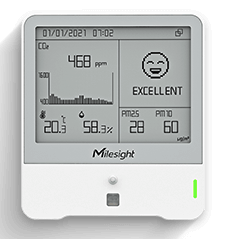
These sensors are powered by long-life batteries and should last until 2028 at the earliest. If the device is not transmitting any data:
- Move the sensor to the vicinity of the gateway (or where another sensor is known to be working) and see if it jumps to life.
- If not, locate the power button on top of the unit. Press and hold it for a few seconds to switch it off, then press again to switch it back on.
Once working, it will take around 30 minutes for data to appear on your graph.
Gateway not working?
📶 If no sensors are working, the gateway is probably switched off
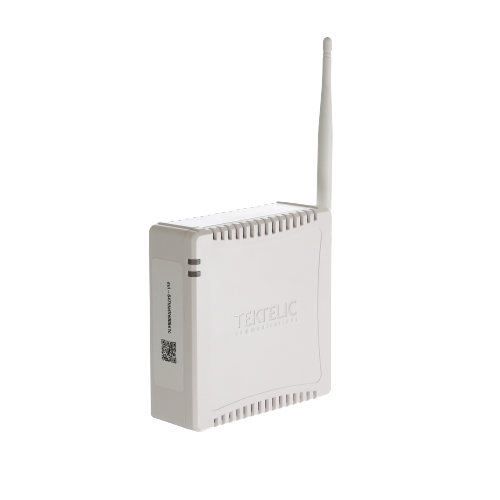
The gateway is the device that collects data from all your sensors and uploads it to the IOT in Schools servers. If none of your sensors are showing data, the gateway has most likely been switched off or unplugged.
Fife, West Lothian & East Lothian
Gateways are located in the school communications room or cabinet and are powered up 24/7/365. These are very reliable devices and rarely break down.
City of Edinburgh, Midlothian & Scottish Borders
Most gateways are located in the school office, another office or a cupboard — rather than a classroom. Learners do not need to know about this device, although it is mission-critical for getting your sensor data onto the graphs.
Support services
🔧 Technical support
For technical support with gateways and sensors, beyond the self-help steps above, email iot-support@ed.ac.uk.
📚 Curricular support
In the first instance, contact your own Council’s Digital Learning team. If none exists, contact your Council’s curricular support service.
Published September 2026 | Contact us | iot-support@ed.ac.uk